SavviAIX reads your Blackbaud Financial Edge NXT vendors, purchase orders and chart of accounts, then creates
each approved AP invoice there, matched to the right PO line, coded from that line, with the
source PDF attached.
Two different people are usually involved. Whether it’s one or two, the order matters: if the
Blackbaud approval hasn’t happened first, authorization appears to succeed and then no
Blackbaud Financial Edge NXT data loads.
First
Your Blackbaud Marketplace admin
Approves the SavviAIX application for your Blackbaud Financial Edge NXT environment. This is a Blackbaud
organization admin, or anyone granted the Marketplace permission. Approving only allows the
application to request access. It grants no data access on its own, and Blackbaud
doesn’t tell us it happened.
The connect screen in step 3 below links straight to Blackbaud’s approval page.
If this isn’t you, send that link along.
Then
Your SavviAIX admin
Works through the three steps below. Step 3 finishes by handing off to Blackbaud’s
authorization screen, where they sign in and grant access. That handoff is the only point at which
they touch Blackbaud, and it needs an account with access to the Blackbaud Financial Edge NXT environment
you’re connecting, not Marketplace admin rights.
Use a dedicated Blackbaud account if you can.
The integration inherits the permissions of whoever signs in there, and a long-running connection
shouldn’t depend on one employee’s personal account.
You’ll also need
A Blackbaud Financial Edge NXT subscription with the SKY API enabled.
A SavviAIX account with admin access. Sign up if you don’t have one yet.
A Blackbaud account with the Blackbaud Financial Edge NXT permissions listed below.
Blackbaud Financial Edge NXT permissions the authorizing account needs
Accounts Payable
Vendors: view (list and detail)
Purchase orders: view, including line items and distributions
Invoices: view, add, edit, and attach documents
Interfund sets: view
General Ledger
Chart of accounts: view
Account structure and segments: view
Funds: view
Don’t worry about getting this perfect up front. Right after you connect, SavviAIX checks each
item against the connected account and shows a per-item Allowed / Denied list. A missing right
shows up by name instead of as a mysterious sync failure.
Complete these steps to connect Blackbaud Financial Edge NXT to SavviAIX
Step one
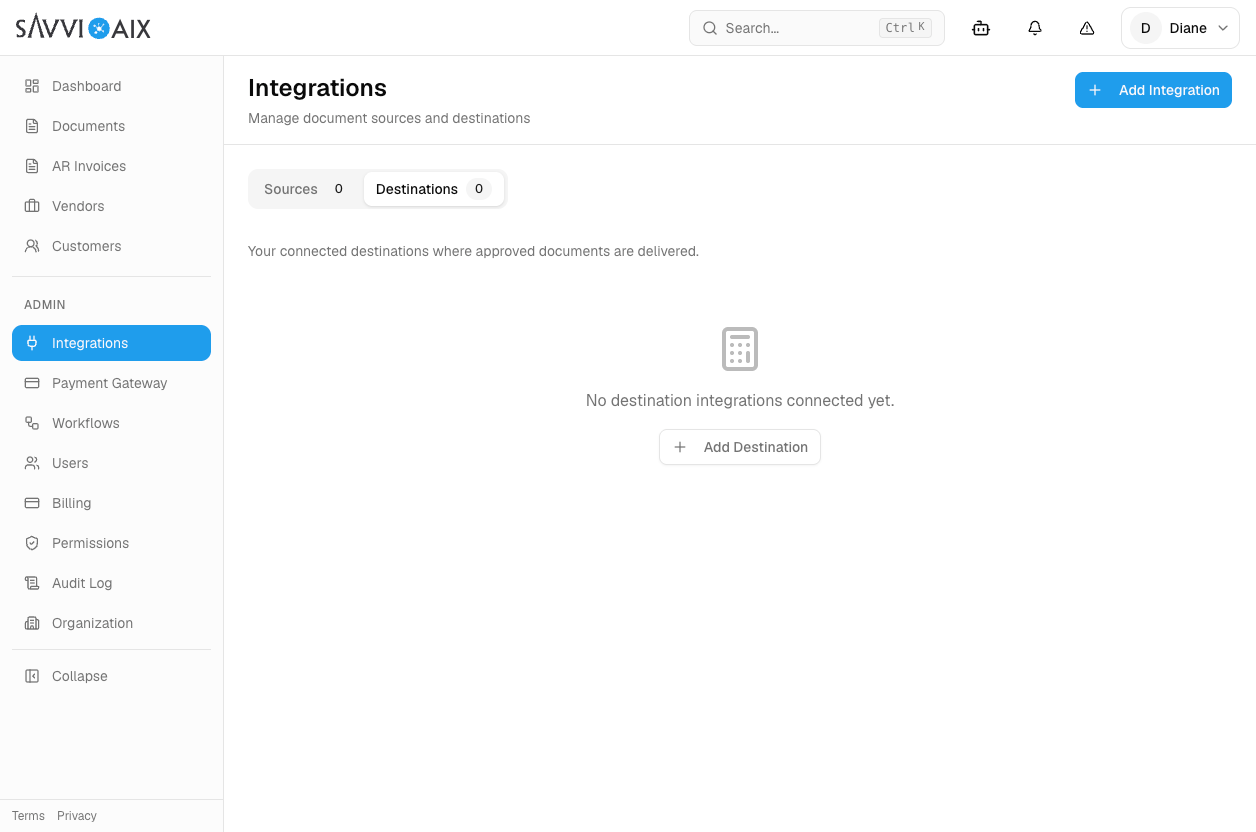
Open Integrations in SavviAIX
Log in to SavviAIX,
then choose Integrations in the left
sidebar under Admin. You can also append
/app/integrations
to your SavviAIX URL.
SavviAIX runs on your organization’s own subdomain. There’s no universal
link we can send you. It’s the address you use to sign in.
Click Add Integration in the top
right. Blackbaud Financial Edge NXT is a destination. Add Destination
on the empty Destinations tab gets you to the same place.
Step 1 of 3Tap to enlarge
Step two
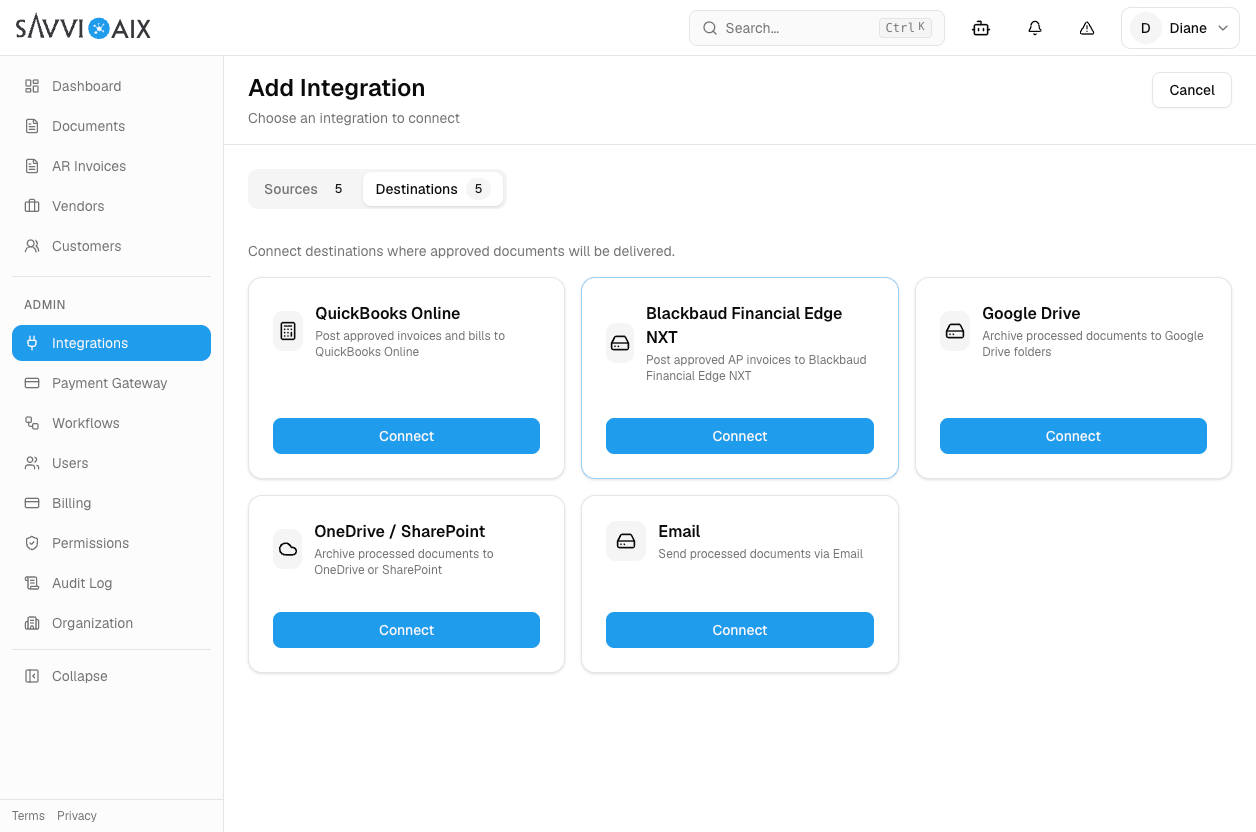
Choose Blackbaud Financial Edge NXT
Open the Destinations tab, find
Blackbaud Financial Edge NXT, and
click Connect.
Destinations are where approved documents get delivered. Blackbaud Financial Edge NXT is where
SavviAIX creates approved AP invoices, against the purchase order they were matched to.
Step 2 of 3Tap to enlarge
Step three
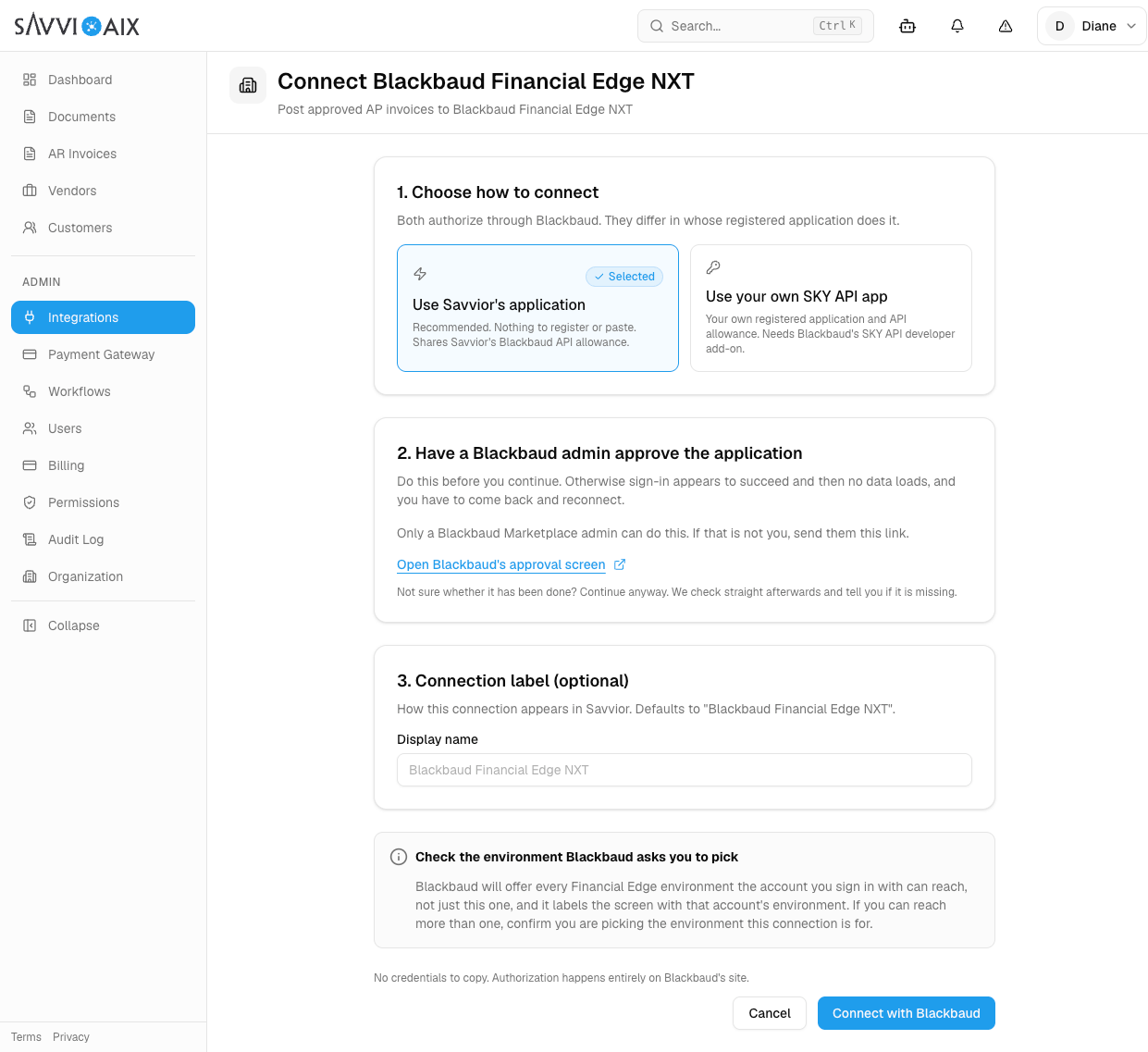
Choose how to connect, then authorize
Both options authorize through Blackbaud. They differ only in whose registered application
does it.
Recommended for most organizations
Leave Use Savvior’s application
selected. There’s nothing to register and no credentials to copy. The
connection shares Savvior’s Blackbaud API allowance.
Have a Blackbaud admin approve the
application before you continue. The screen links to Blackbaud’s approval
page; only a Blackbaud Marketplace admin can complete it. If that isn’t you, send
them the link. Not sure whether it’s been done? Continue anyway. SavviAIX
checks straight afterwards and tells you if it’s missing.
Optionally give the connection a display name, then click
Connect with Blackbaud, sign in and
authorize.
Watch the environment Blackbaud asks you to pick.
The sign-in screen lists every Blackbaud Financial Edge NXT environment your
account can reach, not just the one this connection is for. If more than one
appears, make sure you pick the right one.
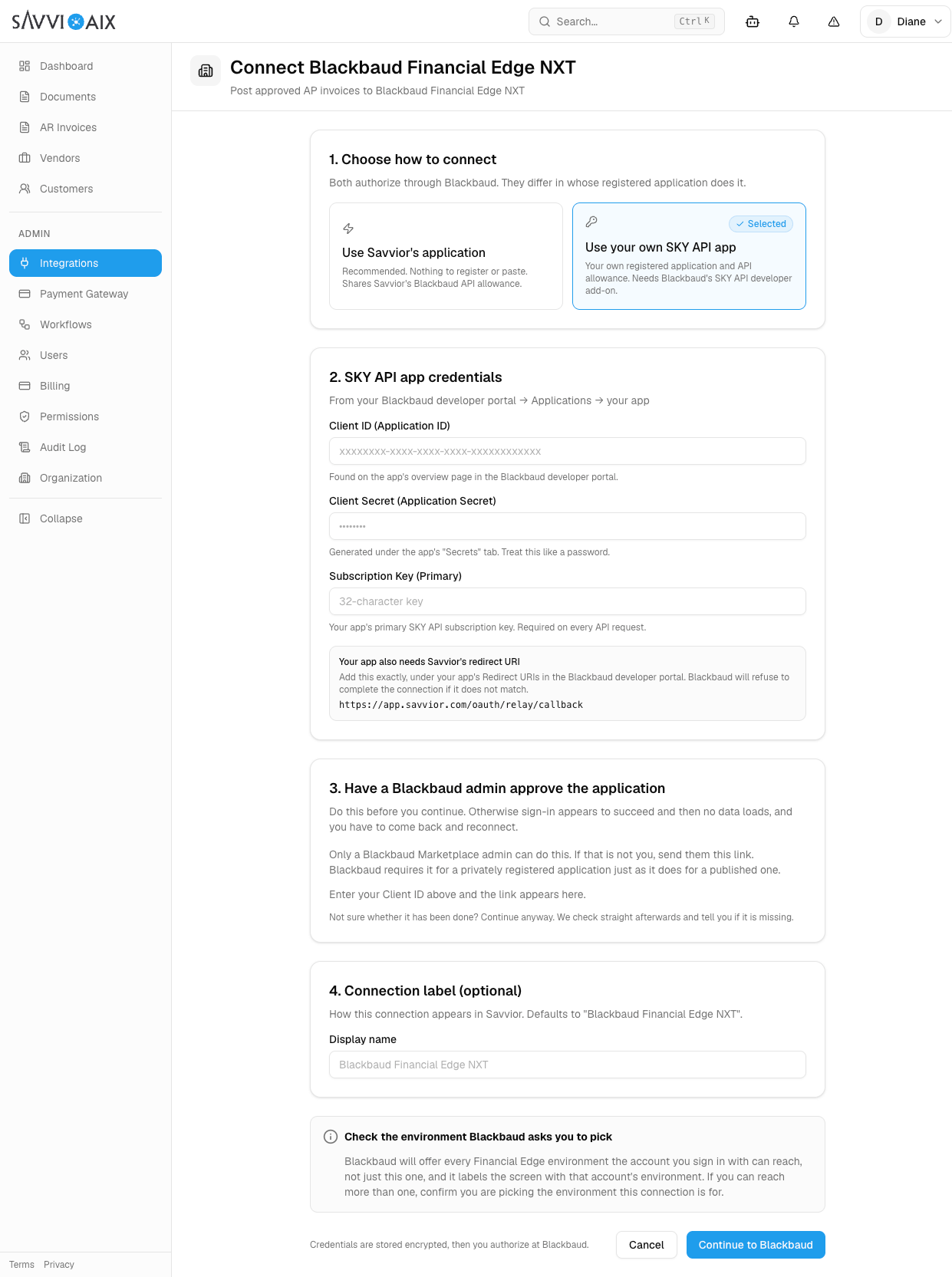
Choose this if your organization wants to use its own registered application and its own
API allowance. It requires Blackbaud’s SKY API developer add-on.
From your Blackbaud developer portal, open
Applications → your app and copy
three values into SavviAIX:
Client ID, found on the app’s overview page.
Client Secret, generated under the app’s Secrets tab. Treat it like a password.
Subscription Key (Primary), the 32-character key sent on every API request.
Your app also needs Savvior’s redirect URI
Add this exactly, under your app’s Redirect URIs in the Blackbaud developer
portal. Blackbaud will refuse to complete the connection if it doesn’t match.
https://app.savvior.com/oauth/relay/callback
A Blackbaud admin still has to approve the application. Blackbaud requires this
for a privately registered application just as it does for a published one. Enter your
Client ID and the approval link appears on the screen.
Then click Continue to Blackbaud to
sign in and authorize. Credentials are stored encrypted; authorization happens on
Blackbaud’s site.
Step 3 of 3 · Using Savvior’s appTap to enlarge
Step 3 of 3 · Using your own SKY API appTap to enlarge
Step 1 of 3Step 2 of 3Step 3 of 3 · Using Savvior’s appStep 3 of 3 · Using your own SKY API appClick to enlarge
What happens after you authorize
Blackbaud sends you back to SavviAIX and the integration page takes over from there.
Permissions are checked
SavviAIX probes each required Blackbaud Financial Edge NXT right against the connected account and shows a per-item Allowed / Denied list. Fix anything denied there, then use Re-check permissions.
Your catalog seeds
Vendors, purchase orders and their line items, and the GL chart of accounts start syncing immediately. The integration page shows seeding progress, and the catalog refreshes on a schedule after that.
Invoices start flowing
Once the catalog has loaded, SavviAIX matches incoming AP invoices to your purchase orders and creates approved ones in Blackbaud Financial Edge NXT, coded from the PO line, with the source PDF attached.
Troubleshooting
This almost always means the connection was authorized before a Blackbaud Marketplace admin approved the application. Data access is stamped into the token when it is created. Completing the approval afterwards doesn’t revive a token that was already issued.
Have the admin complete the approval, then in SavviAIX use Reconnect and re-check permissions. Nothing needs to be deleted.
The sign-in screen lists every Blackbaud Financial Edge NXT environment the signing-in account can reach, and labels the screen with that account’s environment rather than the one you’re connecting. If the wrong one was chosen, use Reconnect and pick again. On later re-authorizations SavviAIX pins the flow to the already-connected environment automatically.
The same connection can be made by sideloading. In Blackbaud, go to Marketplace → Manage → Connect app and enter the SavviAIX Application ID. Contact us and we’ll send you the ID.
Integrations is an admin-only area. Ask an administrator on your SavviAIX account to run through these steps, or to grant you admin access.
The integration inherits the permissions of whoever signed in. If that account can only see part of Blackbaud Financial Edge NXT, SavviAIX can only see that part too. Check the Allowed / Denied list on the integration page, widen the account’s rights there, then use Re-check permissions.
Stuck on a step?
We’ll walk your team through the connection, including the Blackbaud approval, and confirm
your first invoice posts cleanly.